
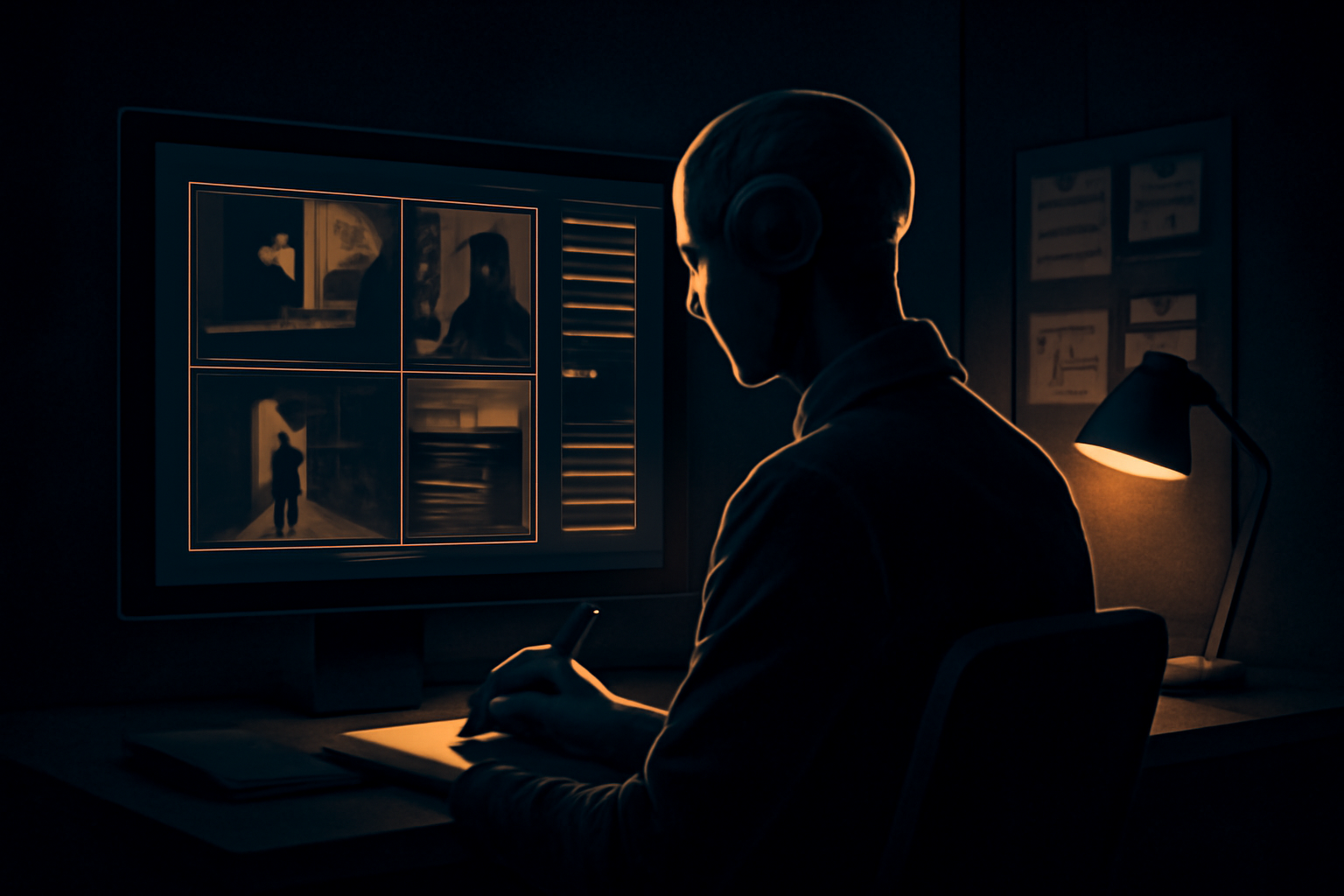
What does it mean to generate a prompt from a video?
When people search for how to generate a prompt from a video, they usually want a written description that could help recreate the clip with an AI video generator. That description may include the subject, setting, action, camera movement, lighting, color palette, pacing, and visual style. In other words, the goal is to turn moving images into useful instructions.
There are two different results a tool might provide. First, it may find a prompt that the creator publicly disclosed in the video description, comments, or another linked source. Second, if no prompt is available, an AI vision model can analyze representative frames and reconstruct a best-effort prompt based on what is visible.
Those results should never be confused. A disclosed prompt is evidence of what the creator shared. A reconstructed prompt is an informed interpretation of the finished video. It can be useful for experimentation, but it is not proof of the original wording or the exact settings used to make the clip.
Why a video cannot reveal its exact original prompt
Pixels show the outcome, not the complete production process. A video frame can reveal that a person is standing in a rainy street beneath blue light, but it cannot prove whether the creator wrote “cinematic night scene” or used a reference image, storyboard, control settings, or several separate generations.
The same visual result can come from many different prompts. One creator might describe a tracking shot in detailed language, while another might use a short prompt and rely on an image reference or model-specific controls. Editing can also hide important information: a final clip may combine multiple shots, overlays, sound design, color grading, and speed changes.
For that reason, trustworthy video-to-prompt tools use clear labels such as “creator-disclosed” and “AI-reconstructed.” This distinction matters if you are studying another creator’s workflow, trying to reproduce an advertisement, or documenting a prompt for a production team. Be skeptical of any service claiming to recover hidden prompt text exactly from pixels alone.
What a reconstruction can usually identify
A useful reconstruction starts with visible, concrete details. It may identify the main subject, approximate age or appearance, environment, time of day, weather, important objects, and the central action. For example, a result might describe a small orange robot walking through an abandoned greenhouse while dust floats through warm sunlight.
It can also describe motion and cinematography, although these details are estimates. A sequence may appear to use a slow dolly forward, a handheld follow shot, a wide establishing view, or a close-up with shallow depth of field. The model can infer these qualities by comparing frames, but it may miss subtle movement or confuse camera motion with subject movement.
Style and atmosphere are often valuable additions. A reconstruction might mention muted earth tones, soft volumetric light, glossy product photography, documentary realism, surreal proportions, or an energetic social-video rhythm. Treat these phrases as creative starting points. They help you test a new generation, but they do not guarantee the same model, seed, duration, or result.

A practical workflow for generating a video prompt
Start by locating information the creator intentionally published. On a YouTube video, read the full description rather than only the first visible lines, then search comments for terms such as “prompt,” “workflow,” “seed,” or the name of the video model. A creator may have posted the prompt in a pinned comment or linked a longer breakdown.
If no prompt is disclosed, provide the video or a suitable file to a tool that can inspect frames. Browser-based analysis can extract frames locally for inspection without requiring the uploaded video to be permanently stored. The tool should then summarize what it sees and clearly mark the result as reconstructed rather than extracted.
Review the output before using it. Remove guesses about invisible details, correct the subject’s appearance, and separate what happens in each shot if the clip contains cuts. Then add your own production requirements, such as aspect ratio, duration, dialogue, negative instructions, or a target model’s preferred format. A short revision can be more useful than copying every descriptive phrase.
How to improve a reconstructed prompt
Compare the generated prompt with the video one feature at a time. Check whether the subject is described accurately, whether the action happens in the right order, and whether the camera perspective matches the footage. If a person turns toward the camera halfway through the shot, that timing may need to be written explicitly instead of hidden inside a general style sentence.
Keep observable facts separate from interpretation. “A red umbrella reflects street lights” is a visible detail. “The scene was made with a specific cinematic model” is an unsupported conclusion unless the creator disclosed it. This simple distinction prevents a plausible reconstruction from becoming a misleading claim about how the video was produced.
For more control, divide the result into sections such as subject, environment, action, camera, lighting, style, and technical settings. This makes it easier to replace one element without rewriting everything. You can also generate several variations: one faithful description, one optimized for a particular video model, and one adapted for a different aspect ratio or commercial purpose.
When to use a video-to-prompt tool
This approach is useful when you want to study visual structure, create a starting point for a remake, brief a designer, or turn a reference clip into new creative directions. It is especially helpful when a video contains complex lighting or camera movement that is difficult to describe from memory. For additional context, see this guide to reconstructed prompts and how frame analysis supports them.
It is less useful when you need the exact original prompt, hidden model parameters, or a perfect duplicate of the source. Those details may never have existed in text, may have been changed during editing, or may belong to a private workflow. A good result should therefore be treated as a practical approximation, not forensic recovery.
If you want to see what is publicly available before reconstruction, a tool can check a YouTube description and comments for creator-provided prompt clues, then fall back to frame analysis only when appropriate. Try the video-to-prompt tool to analyze a reference video and get a clearly labeled disclosed prompt or AI-reconstructed starting point.



Leave a Reply