

What “Veo prompt from video” means
“Veo prompt from video” usually refers to the attempt to identify or recreate the text instructions that may have been used to generate a video with Google Veo. Someone sees a finished clip—a cinematic camera move, a character, a setting, and a particular visual style—and wants to know what prompt could have produced it.
That request can mean two different things. The first is finding a prompt that the creator openly shared in the YouTube description, a pinned comment, or a reply. The second is asking an AI system to study the video and write a plausible prompt describing its visible content and motion.
Those outcomes should not be confused. A disclosed prompt is evidence from the creator. A reconstructed prompt is an informed description based on what the video shows. The wording may be useful for making a similar experiment, but it is not proof of the original Veo prompt.
Why the original prompt cannot be read from pixels
A video file contains rendered frames, audio, timing, and technical metadata. It does not normally contain the private text prompt entered into a generation tool. Once instructions have been converted into images and motion, many different prompts could describe the same result. There is no hidden caption layer that a vision model can simply recover.
For example, a clip of a red fox walking through a snowy forest might have come from a short prompt, a long prompt with camera controls, or several generations edited together. The final pixels cannot reveal whether the creator specified “slow dolly forward,” selected a preset, used an image reference, or corrected the output afterward.
This is why a responsible prompt reconstruction guide distinguishes extraction from reconstruction. A tool can search for creator-provided evidence and can generate a best-effort visual explanation, but it should never label an AI guess as the exact source prompt.
How a Veo video-to-prompt tool works
A practical tool generally starts with a YouTube link or an uploaded video file. For a public video, it may inspect the description and comments for phrases such as “prompt,” “text prompt,” or a block of generation instructions. It can also look for a creator’s explanation of the model, settings, aspect ratio, or workflow.
If no disclosed prompt is found, the tool analyzes representative frames. Frame selection matters: a single opening image might miss a transformation, while too many nearly identical frames add little information. Useful samples can show the subject, environment, camera movement, lighting changes, transitions, and any action that gives the clip its character.
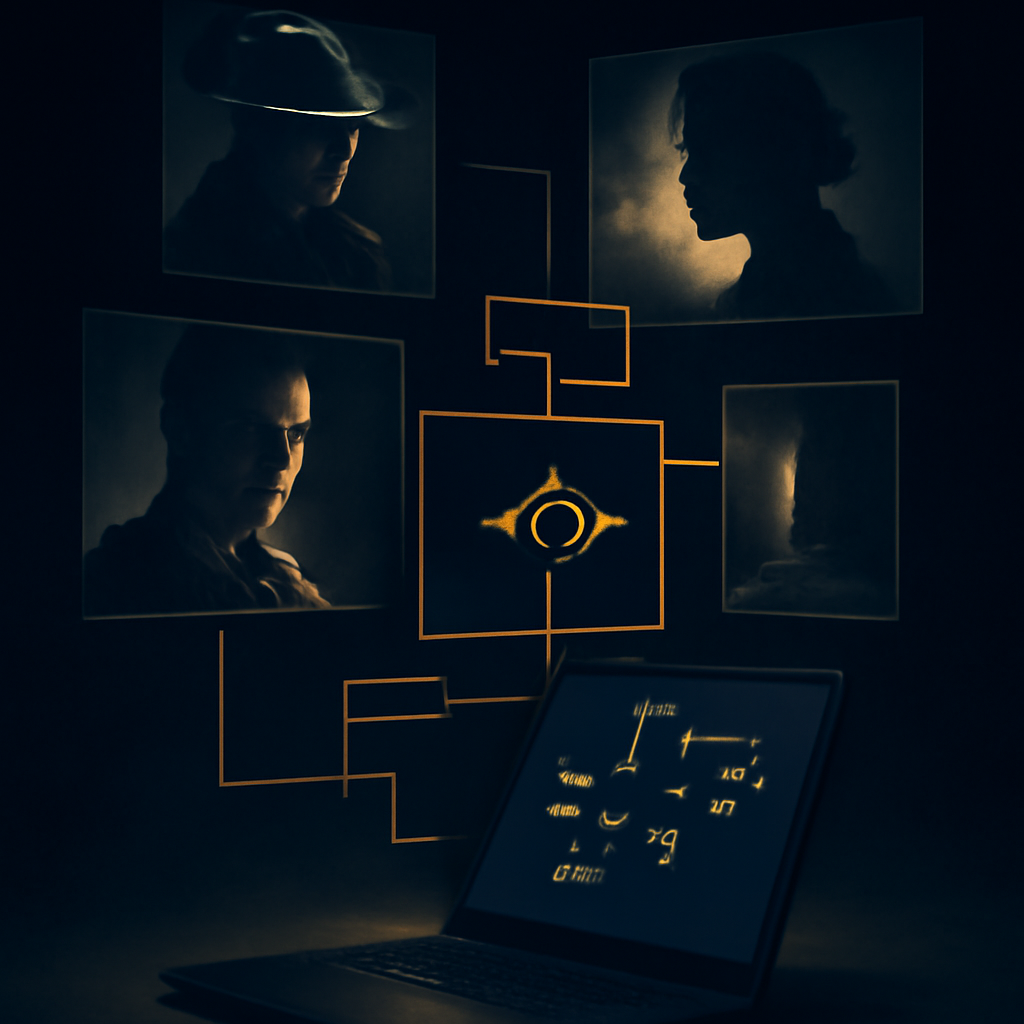
An AI vision model then turns those observations into structured language. A good reconstruction may cover the subject, action, location, composition, lens-like perspective, lighting, color palette, atmosphere, and motion. It can also separate what is clearly visible from details that are only likely, making the result easier to evaluate and revise.
What the reconstructed result can and cannot tell you
A reconstruction is most useful as a starting point for a new generation. Suppose the video shows a miniature astronaut repairing a satellite above Earth. A useful result might describe the astronaut’s suit, the curved planet below, sunlight along the spacecraft, a slow orbiting camera, and a realistic cinematic look. Those details can help you build a new prompt for Veo or another video model.
However, the reconstruction may miss information that is not visible. It cannot reliably identify the creator’s negative prompt, seed, guidance settings, reference image, editing software, model version, or the exact number of attempts. It may also infer the wrong material, time period, or camera movement when the footage is dark, compressed, stylized, or heavily edited.
Results should therefore be treated as hypotheses rather than transcripts. Compare the wording with the actual clip, remove unsupported details, and keep uncertainty in mind. The goal is not to recover secret text from pixels; it is to produce a practical description that captures the visual and temporal qualities worth recreating.
Creator-disclosed prompts are the stronger signal
When a creator publishes the original prompt, that information is more valuable than a visual guess. A description might include exact wording, model settings, shot duration, image references, or several prompts used for different scenes. Even then, check whether the text belongs to the entire video or only one segment.
Comments can provide useful clues too, especially when viewers ask how a shot was made and the creator answers directly. But comments also contain speculation, copied prompts, and unrelated suggestions. A tool should distinguish a creator disclosure from a viewer’s guess instead of treating every matching phrase as authoritative.
If the source includes no prompt, a transparent tool should say so and clearly mark the generated result as reconstructed. This labeling helps set realistic expectations and makes the output safer to reuse. You can then test the reconstruction, adjust the subject or camera direction, and document your own version rather than claiming it is the creator’s original.
A practical way to use the result
Start by deciding what you want to reproduce. If you care about the subject, keep the character and setting specific. If the camera movement is the important part, focus on phrases such as “slow tracking shot,” “handheld push-in,” or “wide aerial reveal,” but only when the footage supports them. Avoid copying every decorative adjective if it does not affect the result.
Next, turn the reconstruction into a controlled test. Change one element at a time: preserve the composition while changing the lighting, or preserve the action while changing the style. This makes it easier to learn which parts of the description matter. For a multi-scene video, create separate prompts instead of forcing one paragraph to explain unrelated shots.
For a quick way to check a YouTube video’s description, comments, or visual frames, try the video-to-prompt tool. It presents creator-disclosed material when available and labels AI-generated reconstructions when it has to infer the scene, giving you a more honest starting point for Veo experiments.




Leave a Reply