
What does “what prompt made this video?” really mean?
When people ask, “what prompt made this video?”, they usually want to recreate an AI-generated clip: the same subject, camera movement, lighting, visual style, and mood. The question sounds simple, but the answer depends on whether the original creator shared the prompt anywhere. A video may have been made from one sentence, a long structured prompt, several image-to-video steps, or a workflow involving edits and multiple generations.
A video-to-prompt tool therefore has two different jobs. First, it can look for a prompt that the creator has disclosed in the video description, pinned comment, ordinary comments, or related metadata. That is a search task. If the creator wrote “a cinematic shot of a glass spaceship flying through a neon storm,” the tool may be able to find and return that text as a creator-disclosed prompt.
If no prompt is published, the tool can analyze the visible content and reconstruct a best-effort prompt. This is not recovery of the hidden original. Pixels do not contain a reliable copy of the text used to generate them, so no tool can prove the exact source prompt from the video alone. The result is a useful description for experimentation, clearly labeled as an AI-generated reconstruction.
How video-to-prompt tools analyze a clip
The process usually begins with a video link or an uploaded file. For a public YouTube video, the tool may inspect the page information and comments for creator-provided wording before attempting visual analysis. For an uploaded file, frames can be extracted in the browser and sent for analysis without requiring the original video to be permanently stored. The exact workflow varies, but the goal is to combine source information with visual evidence.
Because analyzing every frame would be slow and often unnecessary, the system normally samples representative moments. It may examine the opening shot, a middle frame, a change in action, and the final composition. Those frames help identify the subject, environment, colors, camera angle, motion, lighting, lens-like qualities, and overall style. A short clip of a robot walking through a rainy alley, for example, can yield details about wet pavement, reflections, backlighting, scale, and movement direction.
The vision model then turns those observations into prompt-like language. It may organize the result into a subject and action, setting, visual style, cinematography, lighting, motion, and output details. This structure is more useful than a vague caption because it gives you separate elements to change. You might keep the rainy alley while replacing the robot with a cyclist or change the slow tracking shot into a handheld close-up.
What a reconstructed prompt can and cannot tell you
A reconstruction can capture the visible intent of a video surprisingly well. It may identify that a scene shows a miniature astronaut inside a greenhouse, lit by warm sunlight, with a slow push-in and shallow depth of field. It can also suggest practical terms such as “wide shot,” “low angle,” “volumetric light,” “slow motion,” or “cinematic color grading” when those features are supported by the frames.
However, it cannot reliably identify hidden settings or private workflow choices. The original creator may have used a negative prompt, a seed, a reference image, a motion brush, a character LoRA, a control track, or several rounds of editing. A finished video may also include cuts, sound design, upscaling, interpolation, and color correction that were not part of the generation prompt. A reconstructed description should not claim to know those details unless they are disclosed or strongly visible.
The distinction matters when you compare the result with the original. Two completely different prompts can produce similar images, while small changes to a model, seed, aspect ratio, or motion setting can produce very different results. Treat the output as a practical starting hypothesis: close enough to guide a new experiment, but not evidence of the exact words used by the creator.
A realistic example: recreating a short AI video
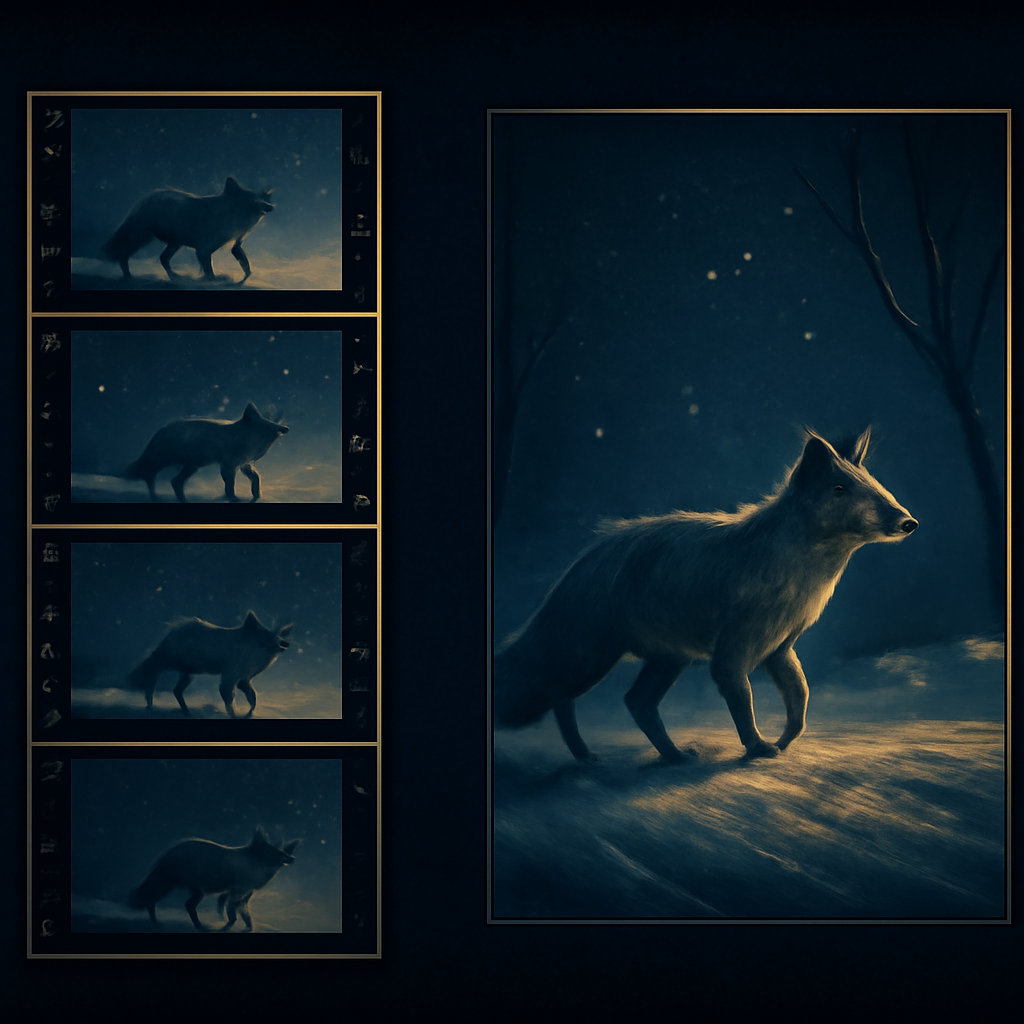
Imagine a ten-second clip showing a red fox crossing a snowy forest at dawn. The camera stays low, snow falls softly, and golden light appears between the trees. A useful reconstructed prompt might mention the fox, winter forest, dawn lighting, falling snow, low tracking camera, natural movement, detailed fur, and cinematic realism. Those are visible or reasonably inferred qualities that can help another creator build a similar test.
That prompt still leaves important questions unanswered. Was the fox generated as a still image first? Did the creator use a start frame and end frame? Was the walking motion added with a separate video model? Did an editor slow the footage down or add the snowfall afterward? If you expect one reconstructed sentence to reproduce every frame, you will probably be disappointed. The tool describes the result, not the complete production history.
For better results, use the reconstruction as a set of adjustable ingredients. Keep the subject and environment, then test different movement phrases such as “slow lateral tracking shot,” “gentle forward dolly,” or “static camera with the fox crossing frame.” You can also remove uncertain style terms and add constraints that your chosen generator understands. Iteration is usually more productive than treating the first output as a final answer.
Common mistakes when using video-to-prompt tools
One common mistake is assuming that a public video link automatically exposes its original prompt. A YouTube description may contain no prompt at all, or it may include only a short caption such as “made with AI.” In that situation, the tool can search the available text but must switch to visual reconstruction. A guide to YouTube video prompts can help clarify what information a link does and does not provide.
Another mistake is uploading a long video without considering which parts matter. A montage may contain several unrelated scenes, making one combined prompt too broad to use. If possible, choose a representative clip or evaluate distinct shots separately. Rapid cuts, heavy overlays, subtitles, dark footage, and unusual aspect ratios can also reduce the quality of visual observations, so a clean source usually produces a more useful description.
It is also easy to copy every detail into a new prompt without checking whether the detail is stable. A model might label a blurry object as a lantern when it is actually a street sign, or infer a specific camera lens from an ordinary perspective. Review the result, remove guesses you do not need, and preserve the elements you can verify. The aim is controlled recreation, not blind duplication.
How to get more value from a video-to-prompt result
Start by deciding what you want to reproduce. If the composition matters most, focus on subject placement, framing, camera height, and background. If the motion matters, pay closer attention to the direction and speed of movement, camera behavior, and transitions. If the look matters, examine color, contrast, texture, lighting, and the relationship between foreground and background. A prompt designed around one goal is easier to test than a paragraph containing every possible observation.
Then compare the generated description with the source video and separate facts from suggestions. “A person walks through a red doorway” is a visible event. “Shot on a 35mm lens with a specific camera” is usually an interpretation unless the creator disclosed it. This simple review step helps prevent confident-sounding assumptions from becoming part of your workflow. For additional context, you can read about what a video prompt generator can really tell you.
Finally, run small experiments. Change one variable at a time: the subject, lighting, camera movement, or style. Save the versions that produce the closest composition, then refine the prompt around those results. Whether the source prompt was found in a description or reconstructed from frames, the most useful outcome is a clearer path to your own generation process—not a claim that the hidden original has been recovered.
If you want to inspect a video link or analyze a file and receive a clearly labeled result, try the video-to-prompt tool. It can check for a creator-disclosed prompt first and provide a best-effort visual reconstruction only when no disclosed prompt is available.



Leave a Reply