What does “how to convert a video into AI” mean?
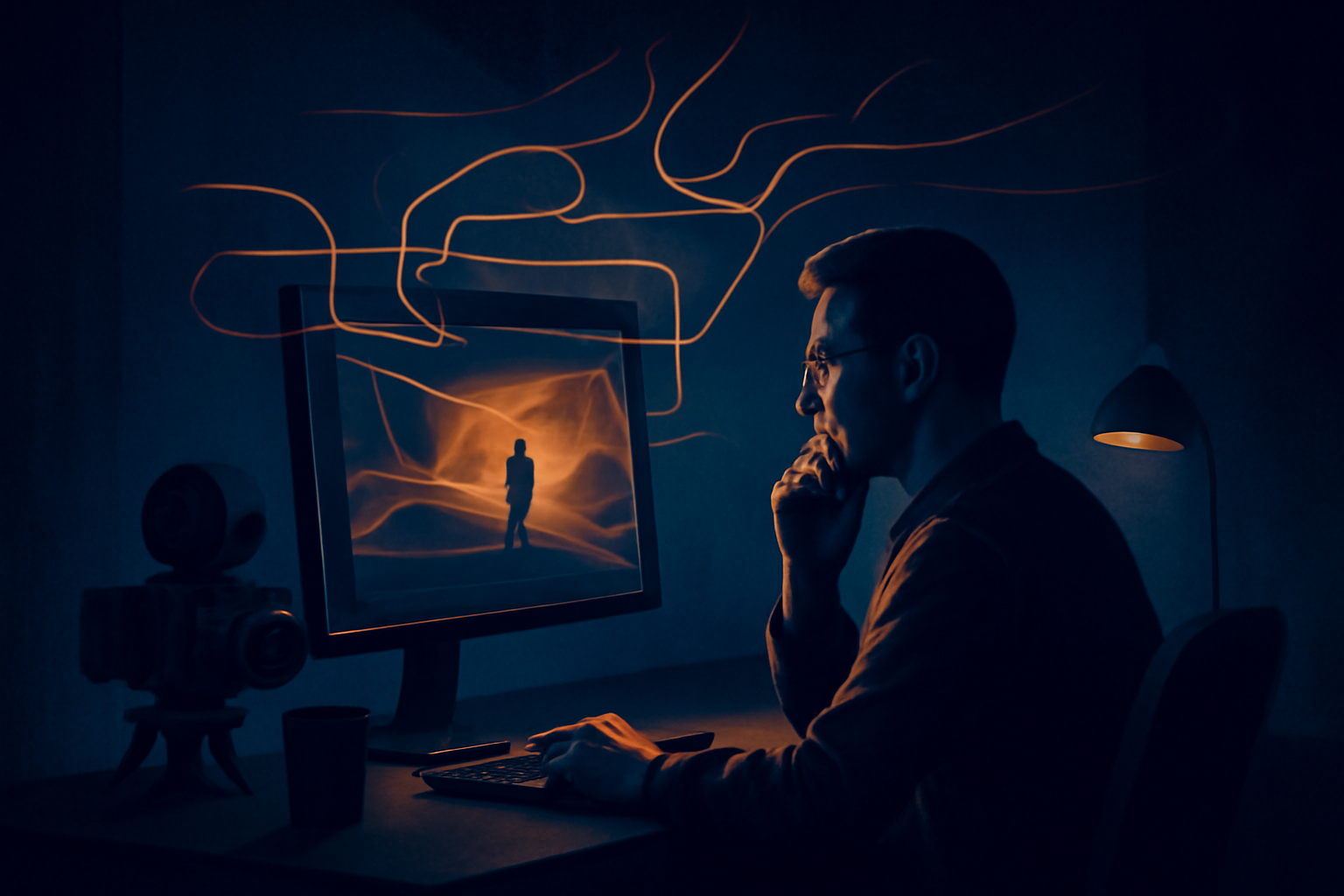
“How to convert a video into AI” can mean several different things. Some people want to turn a finished clip into an AI-generated prompt. Others want to transform a video into a stylized remake, extract its transcript, create captions, or identify the objects, actions, and camera movements inside it. The right tool depends on which of these outcomes you actually need.
For creators researching AI video, the phrase usually means converting a visible video into a text description that another AI video generator can understand. A video-to-prompt tool may describe the subject, setting, composition, lighting, motion, lens feel, color palette, and overall style. The result can then serve as a starting point for recreating a similar concept in an image or video model.
That process is not the same as recovering the original prompt. A finished video contains visual evidence, but it does not contain every instruction used to make it. The creator may have specified a model, seed, reference image, negative prompt, editing workflow, or dozens of failed attempts. Those hidden details cannot be read directly from the pixels.
What a video-to-AI tool can actually analyze
A capable analyzer can inspect selected frames and identify details that are visually apparent. For example, it may recognize a silver robot walking through a rainy neon street, a slow forward camera movement, shallow depth of field, blue and magenta lighting, reflective pavement, and a cinematic science-fiction mood. These observations are useful because they turn a vague visual reference into reusable language.
It can also compare several moments instead of relying on one still image. That helps distinguish a static portrait from a shot with a tracking camera, a subject that changes position, or an object that transforms during the clip. Sampling frames at meaningful intervals is especially helpful for short social videos, advertisements, and AI-generated clips with noticeable transitions.
However, analysis remains an interpretation. Motion can be difficult to classify when the source is blurry, compressed, edited quickly, or covered by captions. A model may call a pan a tracking shot, mistake a digital zoom for a lens change, or describe an implied action that the video never clearly shows. Treat its output as structured creative guidance, not a technical production log.
Disclosed prompts versus reconstructed prompts
There are two fundamentally different ways to find a prompt behind an AI-generated YouTube video. First, a tool can look for a creator-disclosed prompt in the video description or comments. If the creator pasted the prompt, that text is evidence from the source itself, although it may still be incomplete, edited later, or mixed with prompts for multiple shots.
If no disclosed prompt is available, an AI vision model can reconstruct a best-effort prompt from the video. It describes what appears on screen and infers likely visual choices. This can produce a useful approximation, but it must be labeled as reconstructed. It should never be presented as the original wording used by the creator.
This distinction matters when you are comparing results or trying to reproduce a clip. A disclosed prompt may contain exact character names, model settings, aspect ratio instructions, and unusual constraints that are invisible in the final footage. A reconstruction can suggest “handheld documentary camera” or “soft morning backlight,” but it cannot prove that those exact phrases appeared in the source prompt. For a deeper explanation, see reconstructed versus disclosed prompts.
A practical way to convert a video into an AI prompt
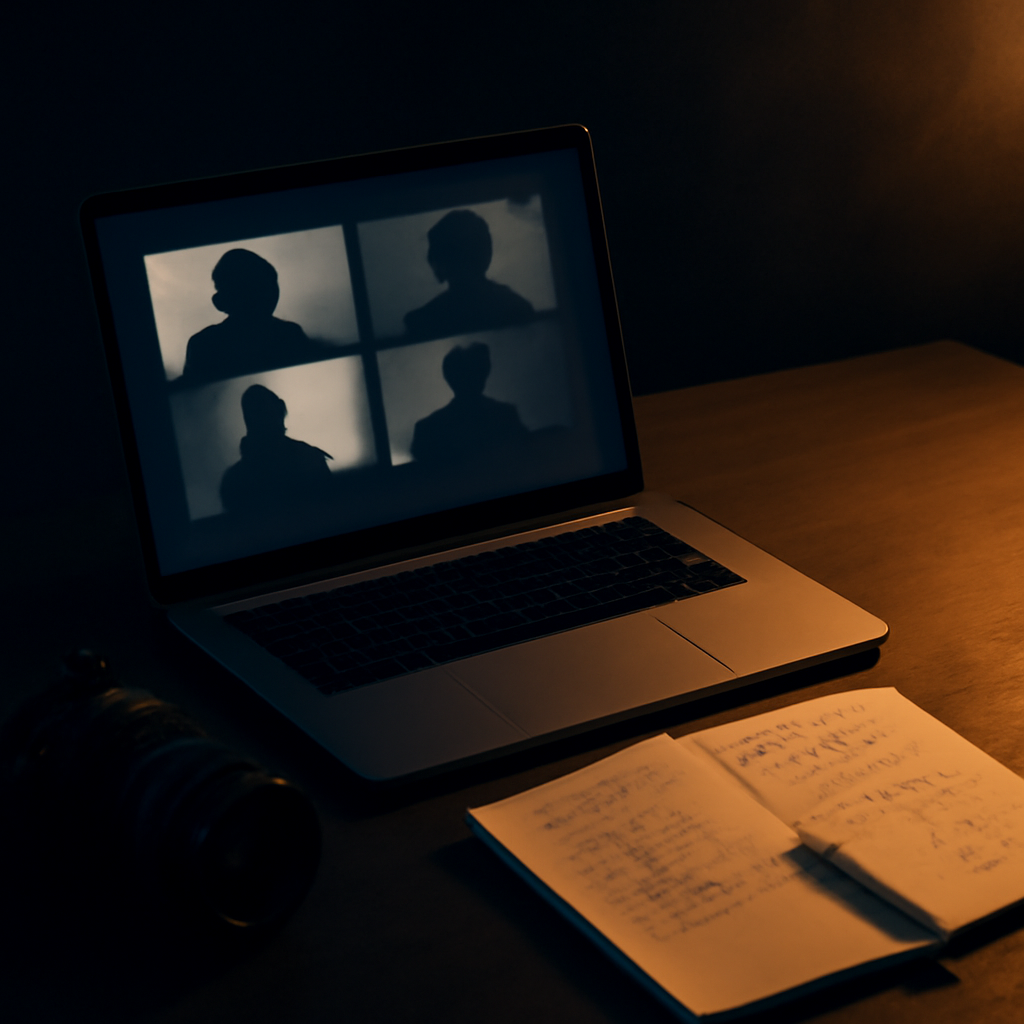
Start by choosing a clear source. A short clip with visible subjects and understandable movement is usually easier to analyze than a long montage full of cuts, overlays, and music-video effects. If you are working from YouTube, review the description and top comments first because the original creator may already have shared a prompt, workflow, or tool name there.
Next, provide the video or its accessible source information to the analyzer. For tools that accept a local upload, use a representative file rather than a screen recording with browser controls visible. A short, high-resolution segment can produce cleaner observations. If privacy matters, check how the service handles uploads; browser-based processing that extracts frames without storing the video can be preferable for sensitive material.
Finally, review the result and edit it for your target generator. Separate the subject and action from the camera direction, environment, lighting, and style. Remove guesses that are not important, add details the model missed, and adapt the wording to the system you plan to use. A reconstructed prompt is most valuable as a first draft that saves observation time, not as a guaranteed one-click recreation.
Common mistakes and realistic expectations
One common mistake is expecting a tool to identify the exact AI model or settings from appearance alone. Similar results can come from different generators, custom workflows, stock footage, traditional filming, or post-production. A dramatic film look does not prove that a particular model, camera preset, or prompt phrase created it.
Another mistake is analyzing an entire long video when only one shot matters. A tool may blend unrelated scenes into a generic summary, making the prompt less useful. For a product ad, for example, analyze the product reveal, hero shot, and final call-to-action separately. Individual shot descriptions are usually easier to refine than one prompt for a two-minute sequence.
You should also expect omissions. Small text, subtle facial expressions, exact timing, sound design, editing rhythm, and hidden reference images may not be recoverable from sampled frames. Use the output to plan a remake, generate variations, or understand visual structure. Do not use it as proof of authorship, an exact production record, or a guaranteed route to identical pixels.
When converting a video into AI is useful
This workflow is useful for creative research. A filmmaker can study how a reference clip combines camera movement and lighting. A marketer can turn a competitor’s ad into a shot-by-shot creative brief. An educator can describe visual examples for a lesson. A creator can also use the output to generate alternate concepts without manually documenting every visible detail.
It can help when the original creator did not publish a prompt, but the goal is inspiration rather than forensic recovery. For instance, a reconstructed description of “a miniature bakery inside a glass greenhouse, filmed with a slow macro push-in and warm afternoon light” gives you several controllable ingredients. You can change the subject, mood, or setting while preserving the visual structure.
If you want to try this process, use the video-to-prompt tool to check for a creator-disclosed prompt first or generate a clearly labeled reconstruction when none is available. Upload a short clip or provide a YouTube source, review the evidence behind the result, and treat the final text as a practical starting point for your next AI video experiment.


Leave a Reply